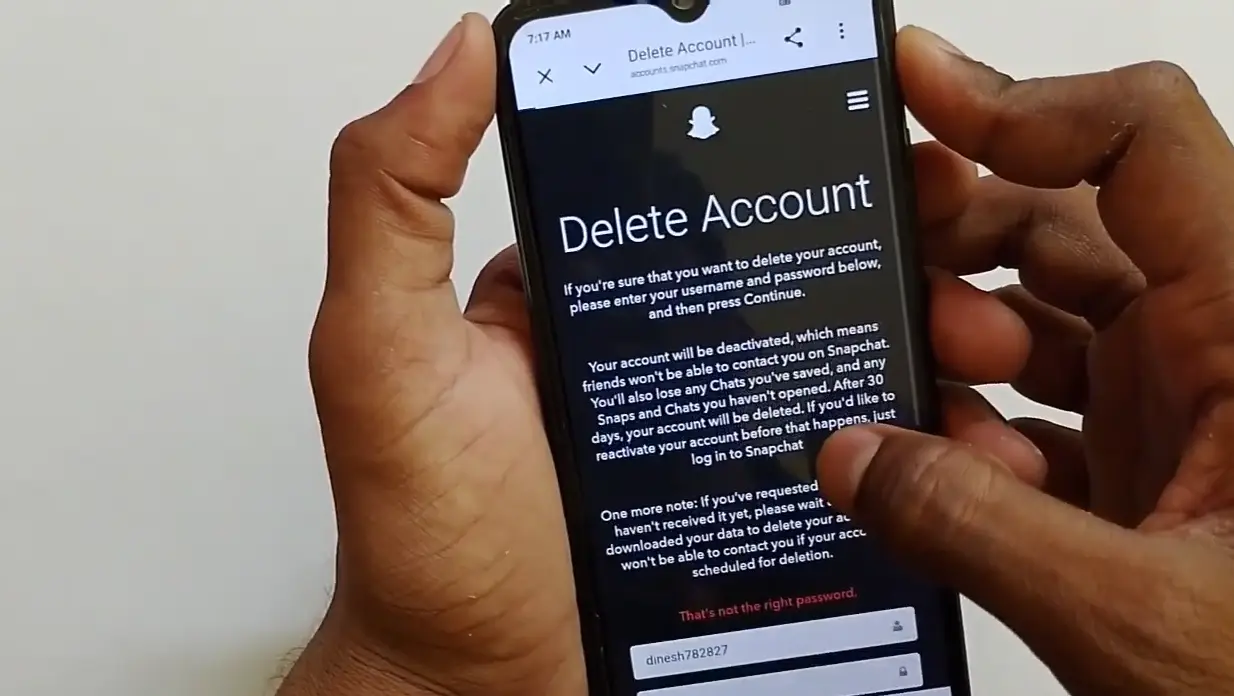
If you want to permanently delete your Snapchat account, this article will show you the complete new method to do it in 2026.
Many users want to remove their Snapchat ID permanently, and the process has a few important steps that you need to follow carefully so that your account is deleted the right way. Let’s go through the entire process step by step.
What will happen before deleting your Snapchat account?
Before you begin the steps, understand what exactly will happen – because many people don’t know this and get confused later.
When you submit a deletion request, Snapchat doesn’t delete your account immediately. The account is first deactivated for 30 days. During this time, your profile, friends list, and Snaps are not visible to others – but the data is not yet permanently deleted.
If you log in within these 30 days, your account will be back active – just like before. Permanent deletion only occurs if there is no login for 30 days. After that, Snapchat takes another 30 days to permanently delete the data making the total process up to 60 days.
These things will be permanently gone after the account is deleted all your Snaps and Chats, Friends list and Streaks, Memories and saved photos, Snapchat Score, Snapchat Plus subscription benefits, and your username, which no one can use again.
If your Snapchat Plus subscription is active, please cancel it first in the Google Play Store or App Store. Deleting the account does not automatically cancel the subscription, and charges will continue to apply.
Step-by-Step Guide to Delete Your Snapchat Account
Step 1: Open Snapchat
First, open your Snapchat app on your phone.
Step 2: Click on Your Profile Logo
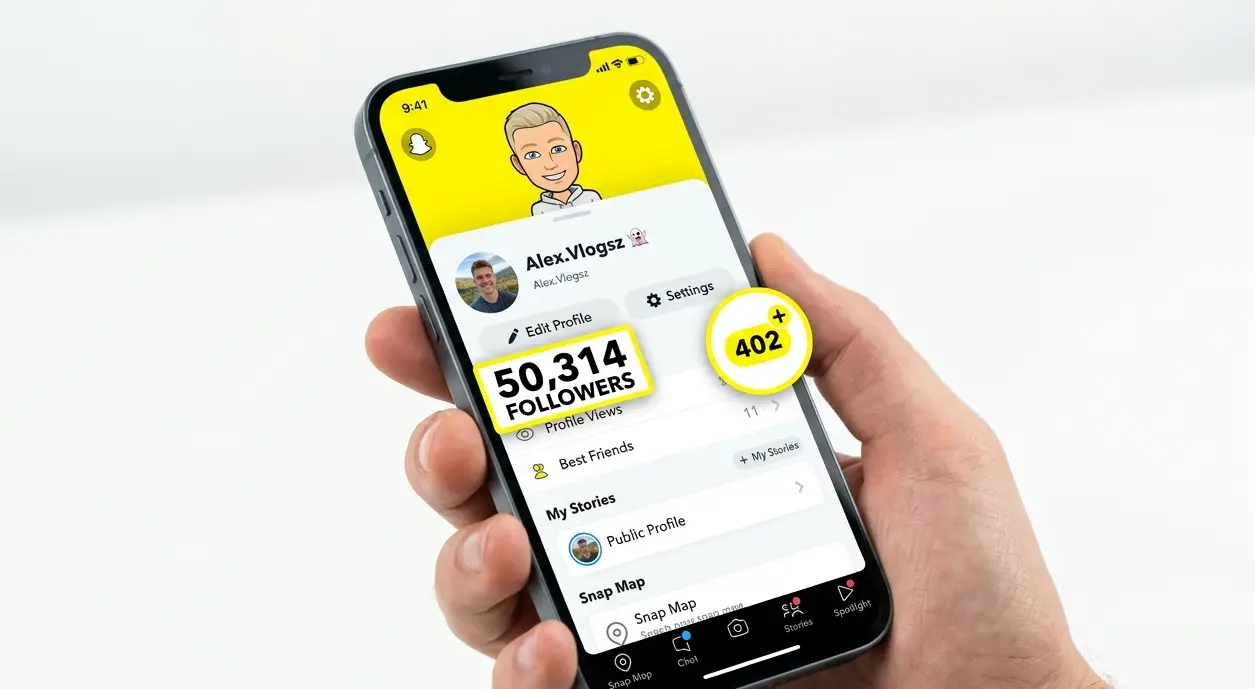
Once the app is open, you will see your profile logo at the top of the screen. Click on this logo to open your profile page.
Step 3: Note Down Your Username
After clicking on the logo, your profile page will open, and you will see your user ID and name displayed there.
It is important to write down or remember this username, because you will need to enter it later when you submit the account deletion request.
Step 4: Go to Settings
On your profile page, you will see a Settings option at the top. Click on Settings to proceed.
Step 5: Scroll Down to find Delete Account
After clicking on Settings, you will see details such as your username, date of birth, and mobile number. Scroll down on this page, and you will find the Delete Account option near the bottom.
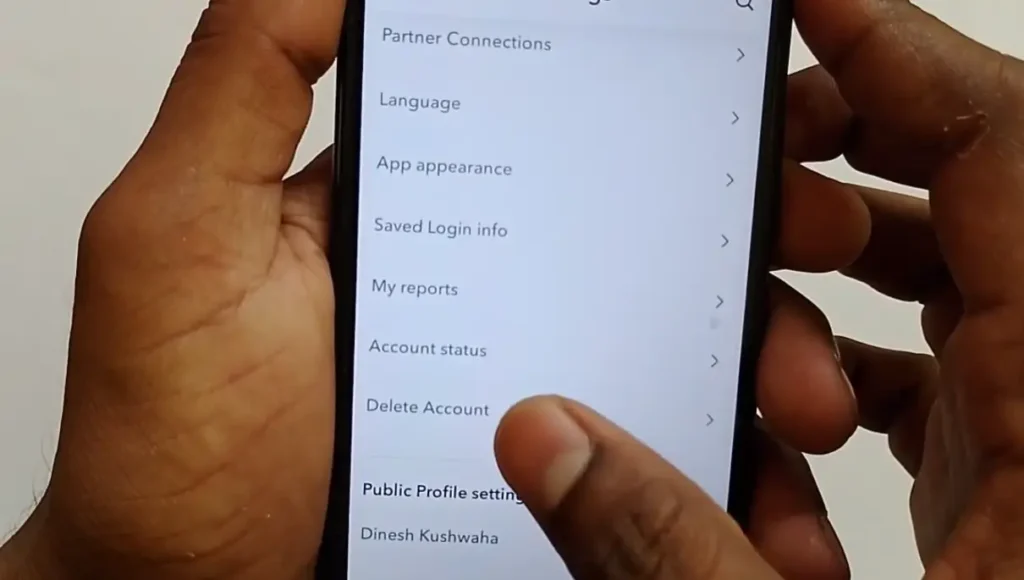
Step 6: Click on Delete Account
Click on the Delete Account option to start the deletion process.
Step 7: Enter Your Username and Log In
On the next page, you will be asked to log in to Snapchat using your username and email ID. Enter the same username that you noted down earlier, then click Next.
Step 8: Verify Your Request
After clicking Next, a verification code will be sent to your registered mobile number to confirm your request. This step is mainly used to verify and automatically log you in.
Note: This OTP verification step usually appears if you have two-factor authentication (2FA) enabled on your account. If 2FA is not turned on, you may not see this step and can move directly to entering your password.
Step 9: Enter Your Password
Next, you will be asked to enter your password. Type in your Snapchat account password and click Next again.
Step 10: Enter the OTP Code (If Required)
After entering your password, another code may be sent to your registered mobile number, depending on your account’s security settings.
Enter this OTP code, then click Next to continue. If you are not asked for this code, simply proceed to the next step.
Step 11: Confirm Account Deletion
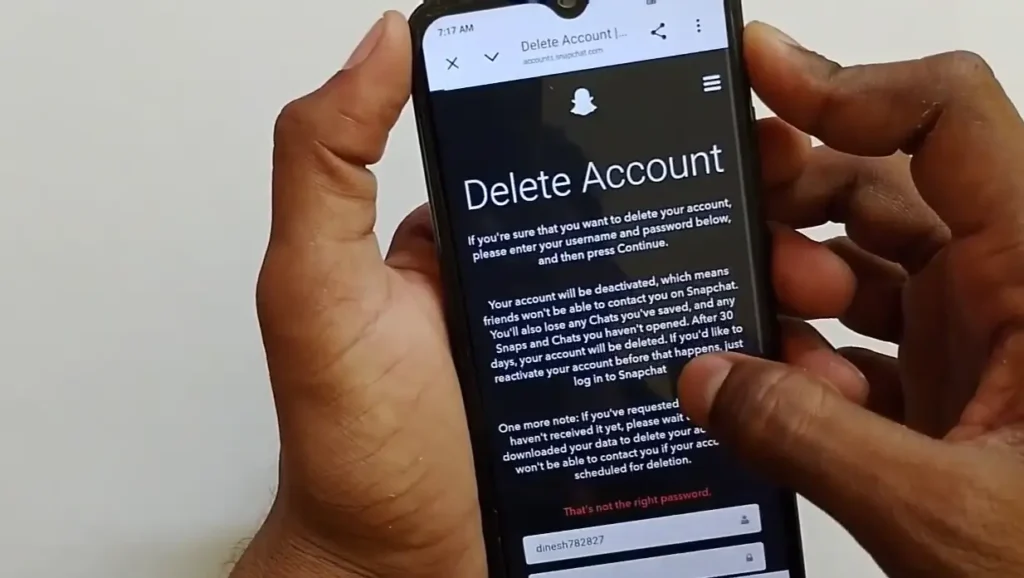
Once the OTP is verified, a page will open showing the Delete Account option for Snapchat. Your username will already be filled in automatically.
Depending on your account and app version, Snapchat may ask you to confirm your password before completing the request.
Note: If you enter the wrong password, the system will not proceed. In that case, re-enter the correct password and click Continue again.
Step 12: Account Deactivated
After clicking Continue with the correct password, your Snapchat account will be deactivated, and your deletion request will be submitted.
The page will then display the message “Account Deactivated,” confirming that the process has started.
Your account is not deleted instantly. It now enters a waiting period before the permanent deletion is completed.
What to do if your Account won’t delete?
Some people experience problems with the deletion process. Here are common issues and their solutions.
If you forget your password, the deletion won’t complete. Go to the Snapchat login page and tap “Forgot Password”. You can reset it using your email or phone number. After the reset, come back and start the deletion process.
If you don’t have access to your registered phone number and two-factor authentication is on, contact Snapchat support directly. Go to support.snapchat.com and explain your situation. The Snapchat team will verify your identity using alternative methods.
If you don’t see the Delete Account option in Settings, update Snapchat to the latest version from the Play Store or App Store. In older versions, this option is located in a different place or is not displayed at all.
If you have submitted a deletion request and have now changed your mind, simply log in within 30 days – the account will automatically reactivate and the deletion will be cancelled.
FAQs (People Also Ask)
Q1: How long does it take to permanently delete a Snapchat account?
Your account is first deactivated for 30 days, during which it can still be recovered. If you do not log in during this time, Snapchat proceeds with permanent deletion, which is usually completed within about 30 to 60 days in total, depending on your region.
Q2: Can I cancel my Snapchat account deletion?
Yes, if you log in to your Snapchat account within the 30-day deactivation period, the deletion request will automatically be cancelled and your account will be restored.
Q3: Will my Snapchat account be visible to others during the 30-day period?
Once your account is deactivated, it is generally no longer visible to other Snapchat users while it is waiting for permanent deletion.
Q4: Do I need my username to delete my Snapchat account?
Yes, you need to enter your username and password during the deletion process, so make sure to note them down before starting.
Q5: What happens after the 30-day deactivation period ends?
If you have not logged in during the 30 days, Snapchat moves forward with permanently deleting your account and data. This cannot be recovered once completed.
Q6: Does deleting Snapchat also cancel Snapchat Plus?
No, deleting the account does not automatically cancel the Snapchat Plus subscription. It must be canceled separately from the Google Play Store or Apple App Store. If not, charges will continue to accrue even after the account is deleted so do this first.
Q7: Can I create a new Snapchat account with the same phone number or email address?
Yes, after the account is permanently deleted, you can create a new account with the same phone number or email address. But you won’t be able to reuse the old username. Snapchat doesn’t allow anyone to reuse deleted usernames.
Disclaimer: This article is for informational purposes only. The steps mentioned above are based on the Snapchat app interface at the time of writing. Snapchat’s settings and account deletion process may change over time, so always refer to the official Snapchat app or support page for the most up-to-date instructions.